Scheduled Reports
This report is available from Reports > Administrative Reports.
All saved search views scheduled to send reports appear on the scheduled reports page. From this page, you can easily modify or delete the reports as needed.
This report sorts the data by user name.
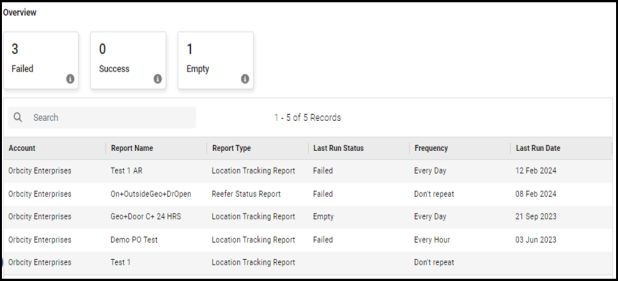
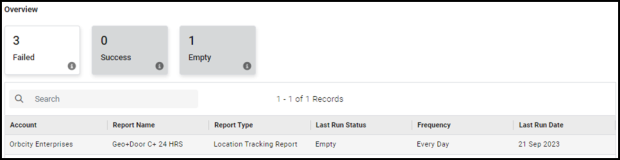
Click one or more overview tiles to filter the list and only see reports that meet that criteria.
Delete a Scheduled Report
-
From the Scheduled Reports page, hover over an item in the Last Run Status column. If this column is not visible in the report, click
 (Show / Hide) and select the column.
 -
Click
 (Delete). and then in the dialog box, click Delete to confirm and permanently remove the scheduled report from the system.
Edit a Scheduled Report or Send a Scheduled Report
-
From the Scheduled Report page, hover over an item in the Last Run Status column. If this column not visible in the report, click
(Show / Hide) and select the column. -
Click
 (Edit).
 -
Change the schedule details (dates, frequency, and repetition) or the email recipients. If the report details are not visible, slide the Schedule switch to the right.
NOTE: Options vary based on the frequency selected. 
-
Click Save.